More training here!
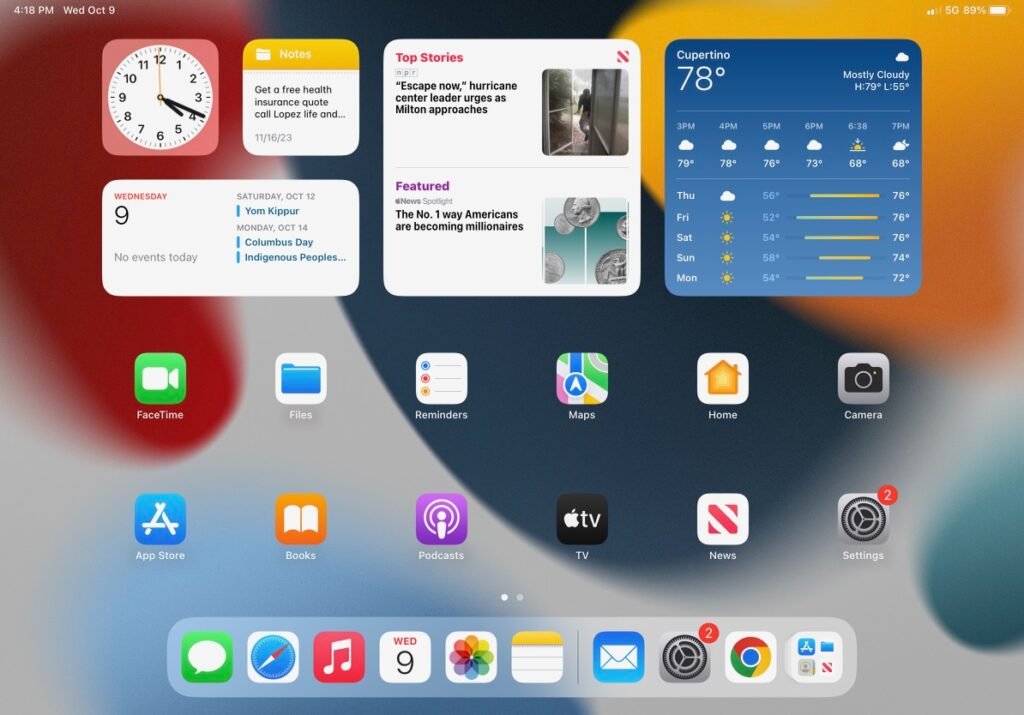
1. Pick the tutorial that will help you create your email account on your computer type (IPad or Windows).
2. Use the email address and the password provided to you by Lincoln Street Media.
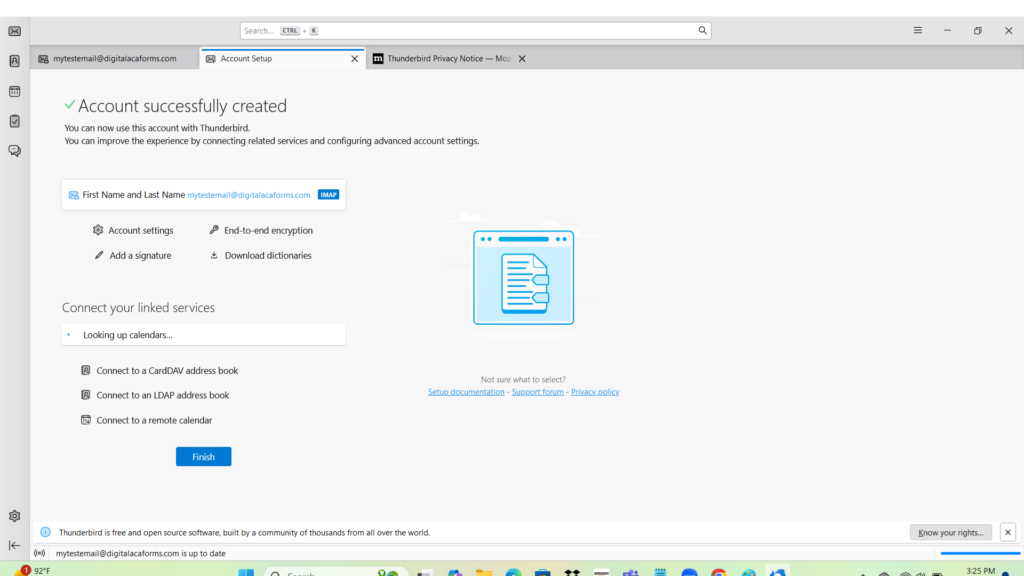
2. For Windows, we recommend the Thunderbird email app. You can also use Outlook, but Microsoft has made it difficult to use.
3. Read the tutorial first, then proceed to create the account on your computer.
4. Scroll down to find a written tutorial on how to use the forms.
How to create an email account on your Ipad for your Consent forms. Click on the image below. PDF.
How to create an email account with Thunderbird email. Step by step PDF. Click on image below.
How To Add Email Account To Outlook - Full Guide
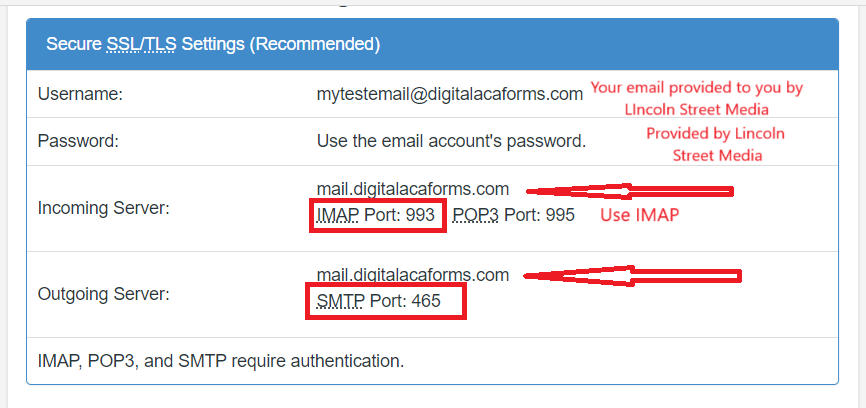
Setting up IMAP/POP Email on Outlook. Use IMAP.
Mail Client Manual Settings. Info you may need to set up your email acct.
How to use the forms
How to use the forms.
1. On your phone, go to your browser and look for your forms website. Your PURL information has been sent to you to your email provided to us during registration. You will see the Menu. Click on the form you need signed. That is the form that you will be sending to the client via text or email. Whenever you need a client to sign one of the forms, you can text them the URL link, or you can send the link to their email. We recommend texting the link to their cellphone as it’s a much faster process, though it’s entirely up to you and the client.
If you’re talking to the client on the phone, tell the client that you are going to send them a text or email containing the web link. The client will then click on the link and will open the form that is needed to be filled out and signed. You will be sending either the Consent form, Consentimiento (consent form in spanish), Consumer Review or Revision de Consumidor. Walk the client through the form and go over any questions the client may have. Have the client sign the form with their finger (this works best on cellphone and touchscreen laptop). You will receive the form(s) in the email we created for you. You can save the form as a PDF to your computer for your records.
How to have the form handy.
2. For quick access, bookmark your web link URL to your browser or create a shortcut of the URL on your cell phone. Once you have the forms on your phone browser, you can easily send it to your client’s phone number.
Receiving the email from the client.
3. Once the client submits the form, you should get the signed ACA form in your new email address within seconds. If you do not get the form right away, you may need to wait a few minutes and/or check your spam folder.
Allow Remote Content.
4. If you are using Thunderbird, once the email system is set up, you can send yourself a test email (as if you are a client signing the form). In the first email, Thunderbird will ask you about allowing remote content to be downloaded. In order to be able to see the signed form you must allow the content to be downloaded. You will choose the following and click on it: Allow remote content from <email address> to show the remote content for all messages from this sender. If you do not allow the remote content for all messages, the signature will not appear on the form.
TIPS:
1. Make sure the client doesn’t change position of the phone from, for example, vertical mode to horizontal mode after signing and before submitting the form. The signature disappears when the position has changed before form submission. In this instance, the client will have to sign again. Please ensure the client keeps their phone in one position. If the signature box freezes and doesn’t allow the client to sign, the client will need to refresh the page so that they can start over.
2. Save the form you received as a PDF. To do so, access the File menu in your Microsoft Outlook or Thunderbird and choose the print option. From the Printer menu dropdown, choose “Microsoft print to PDF or Print to file” then click the print button. Save the resulting PDF in a designated folder meant for storing forms. Assign a name to the form that relates to the client or agent.
You should be able to set up your ACA Digital Forms email address on Outlook or Thunderbird using autodiscovery. This method allows you to follow the prompts when setting up your new email address provided to you by Lincoln Street Media. For autodiscovery, all you need is the new email address and password. We will be sending you that information. If autodiscovery doesn’t work, then follow the tutorials. Make sure you review the tutorial above before you get started.